The homepage slideshow will display 3 slides (though you can change this number) which feature:
- a large, letterbox format image
- a title
- accompanying text in a box inset into the bottom right of the image
Adding a slide
From any admin page look for Slideshow in the left admin menu
To add a new slide click Add slide
Add a title and some accompanying text if you wish (10-15 words maximum – there is only space for a couple of lines)
Now add the image
Click add image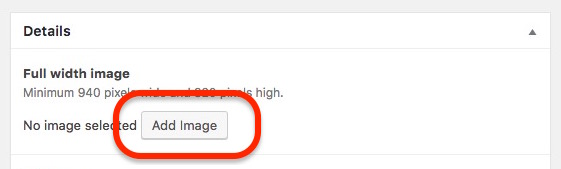 … to reveal the media popup
Drag your image onto the window (it will initially turn blue and then the image will automatically upload)
To ensure the image is big enough for the slideshow, please ensure it is a minimum of 940 pixels wide and 320 pixels high
When you have uploaded the image click select
Finally, choose (either by browsing or searching for) the page you wish the slide to link to

Don’t forget to Publish your new slide!
Editing existing slides
From any admin page look for Slideshow in the left admin menu
To add a new slide click View all slides
In the slideshow list page, click on the title of the image you wish to amend
… and amend the details as you wish.
Don’t forget to click Update when you’re ready!
Reordering the slides
From any admin page look for Slideshow in the left admin menu
To add a new slide click Re-order
On the slideshow re-order page, drag and drop the existing slides into the required order (the first one to be displayed should be at the top). When you’ve finished click Update

Changing the number of slides displayed
By default, 3 slides will be displayed, cycling from one to another every few seconds. However, you can change this number, though you may need to use an administrator user account to do this.
From any admin page look for GMF settings in the left admin menu 
Look for the Slideshow options

When you’ve set the number of slides you’d like to display click Update to save your changes