First, click on Users from the left admin menu. This will lead you to the Users overview screen.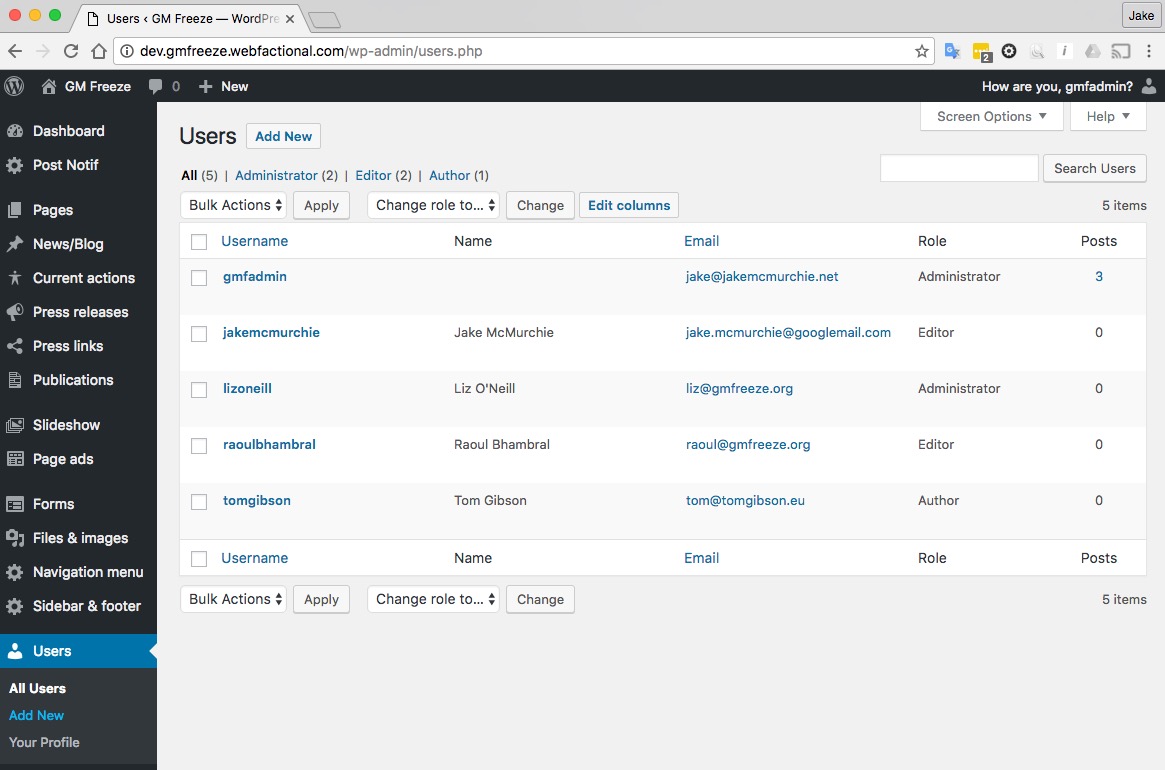
Adding new users
Click Add New
This will take you to the new user screen.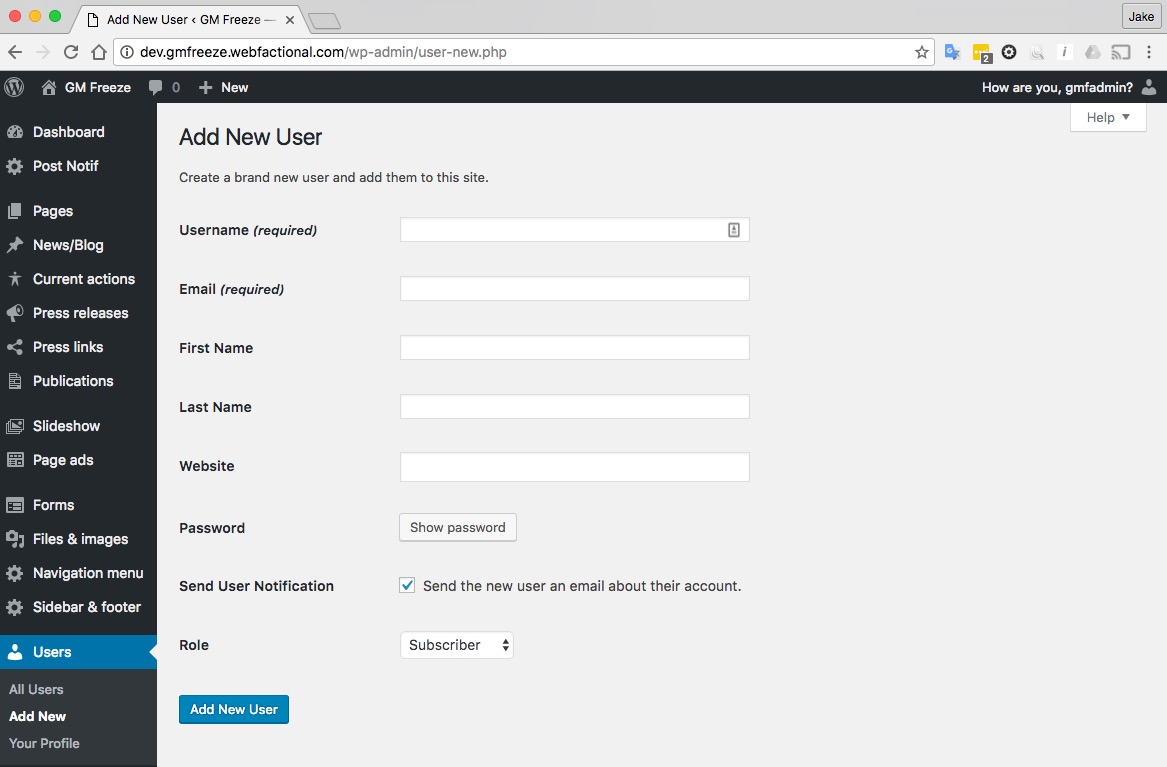
Fill in the required details. It's worth taking note of the Role options. 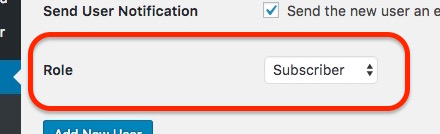
The role options are:
- Subscriber – can only read the content of the website
- Contributor – can create new posts, pages, publications, etc., but can't publish them to the website
- Author – can create new posts, pages, etc., and publish them to the website, but not manage content created by other users
- Editor – can manage all content on the website
- Administrator – can manage all content and can manage all other settings and administrative functions
Editing users' information, including resetting passwords
From the Users' overview screen, click the username of the user being edited to reach the edit screen
On this screen you can make all the changes necessary with a user account including Disabling the visual editor, how the user's name is displayed (a feature not currently needed) and ...
Resetting a user's password
Click the Generate password button at the bottom of the screen above. The system automatically generates a strong password (i.e., one that is difficult to guess or crack). You can override this, and even choose a simpler (and weaker) password, but you will be required to confirm use of a weak password