So you’ve added some text to your page but you want to add an image…
Click the Add Media button just above the editing window

This reveals the media library popup
If you’ve previously uploaded your image browse or search for it and click to select it
If you haven’t previously uploaded your image drag it onto the browser window and wait for it to upload
With the image uploaded and selected, options for inserting it into your post become available on the right hand side
Image details and “alt” text
In the scrolling right-hand pane of the window (above) you can amend the information associated with the image. In particular you can type the Alt Text (alternative text) which is displayed by web-browsers if the image fails to load, and is used to describe the image to visually impaired people using a screen reader instead of a conventional web-browser
There are also two options for editing the image itself, by clicking Edit Image
and Crop Featured Image
See Cropping and editing your images
Left or right? Alignment, hyperlinking and size

Alignment
You can choose to “float” your image to the left or right (with text and other images wrapping around it) or to centre your image in the text.
Link to
The options here are:
- None – the image doesn’t link to anything
- Media file – the image in the page links directly to the original, full-size image that you uploaded
- Attachment page – the image links to a page featuring the image (probably best not to use this)
- Custom URL – selecting this will give you the option to type a URL that the image will link to, which could be another page, another website, or anything you wish
Size
When images are uploaded they are automatically resized to fit certain areas of the website, for example the square thumbnails for page ads, the landscape images for the secondary page ads on the home page, etc. But they are also resized to be appropriate for inserting into the text.
Choose the size you want the image to appear on the page. The options are:
- Thumbnail – a small, square rendition of the image
- Half column width – the image will take up 50% of the main text column width
- Full column width – the image will span the whole of the main text column
- Full page width – the image will span the full page width from left margin, across the sidebar, to the right margin. Note: this is only useful if the page is using the full-width template
- Original size – the original image uploaded will be inserted at its original size
Some examples
Thumbnail image, aligned left

Half-column width, aligned right

Half-column width, aligned centre
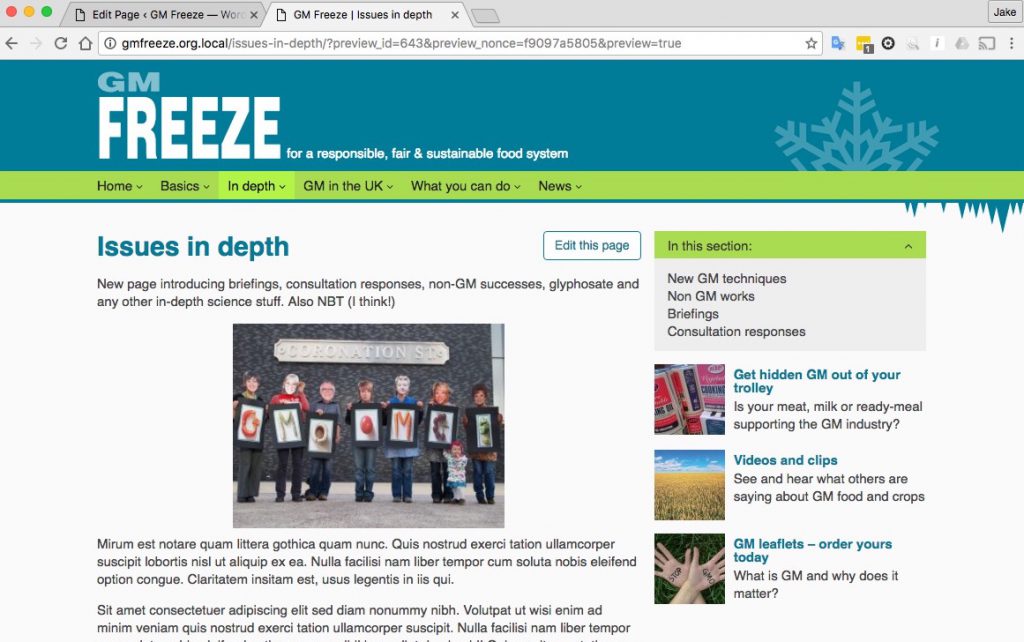
Full-column width
