Wordpress provides a What You See Is What You Get (WYSIWYG) editor which it labels the Visual Editor. This view provides a more "Word-processor" experience and generates the HTML (behind the scenes) which is required to display your content on the website
It also provides an alternative Text editor which gives you greater control over the HTML. You can switch between the two modes using the editor tabs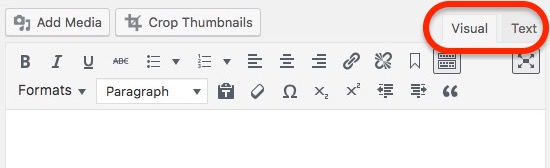
The Visual editor
The editor provides many of the usual word-processing formatting options
Select the text you wish to format and click the appropriate button.
Creating hyperlinks
You can also create hyperlinks from the editor
Select text you wish to turn into a link, and click the link icon on the left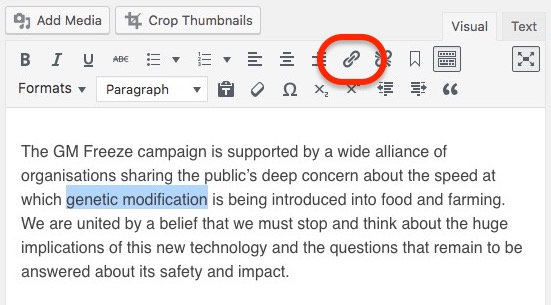
A popup dialogue box will appear
Type or paste the destination URL of the hyperlink or you can use the box to search for a page on the GM Freeze website.
Hit the enter key (or click the blue button) when you're done.
Making a hyperlink that will open in a new window
Follow the same steps above, but before tapping the enter key or clicking the blue button, click the settings button (which looks like a cog)
This will reveal the advanced hyperlink menu which includes a tickbox Open link in a new tab
Tick this and click Add Link.
Removing a hyperlink
Select the text that is currently a link (or simply click inside it) and click the break link button
Creating page "anchor links"
Anchor links are points within a web page that the browser can "jump" to. Place your cursor where you want the page to jump to. Click the anchor button
In the dialogue box that pops up, type the name of the anchor (e.g., "jumptohere") and click OK
You can create a link to this anchor point by using the URL http://www.gmfreeze.org/thispage#jumptohere
Headings
When a page is displayed on the website, the page title is automatically formatted to be a Heading 1 ( the top-level heading). But you can add add your own headings in the body of the text and it is strongly recommended that you use HTML headings.
To do this, select the heading text and open the paragraph dropdown menu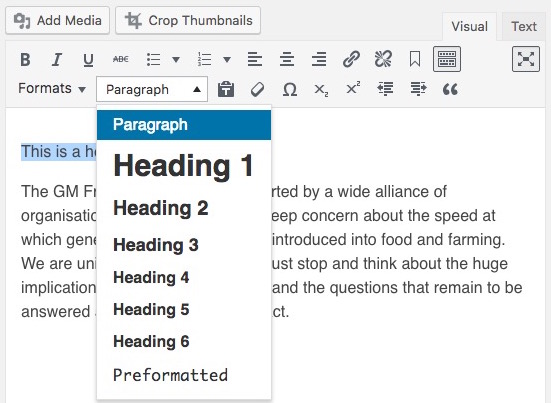
Adding custom styles and "Break-Out Boxes" (BOBs)
Adjacent to the paragraph dropdown menu is the Formats dropdown menu.
If you wish to make a paragraph display in a larger font, select the paragraph, open the Formats dropdown menu and click .lead (larger text)
You can do the same to create a BOB.
A larger text style looks like this: ... a BOB looks like this:
 ... a Green BOB looks like this:
... and a Blue BOB looks like this:
Removing custom styles
To remove one of these styles, place your cursor in the affected text, open the Formats dropdown and click on the highlighted style to "undo" it.